I’m a big fan of retro tech, especially old PCs running Windows 95. There’s something really cool and nostalgic about the grey windows, pixel fonts, and simple icons from the 90s. Recently, I started wondering if I could bring that same look to my iPhone—and I did!
At first, I thought this was going to be somewhat difficult. Luckily for me, others had the same idea and shared how they did it. The basics looked like this:
I needed to create new shortcuts for my apps and replace their icons with Windows 95-style icons. I also needed to change my wallpaper to something with a Windows 95 theme.
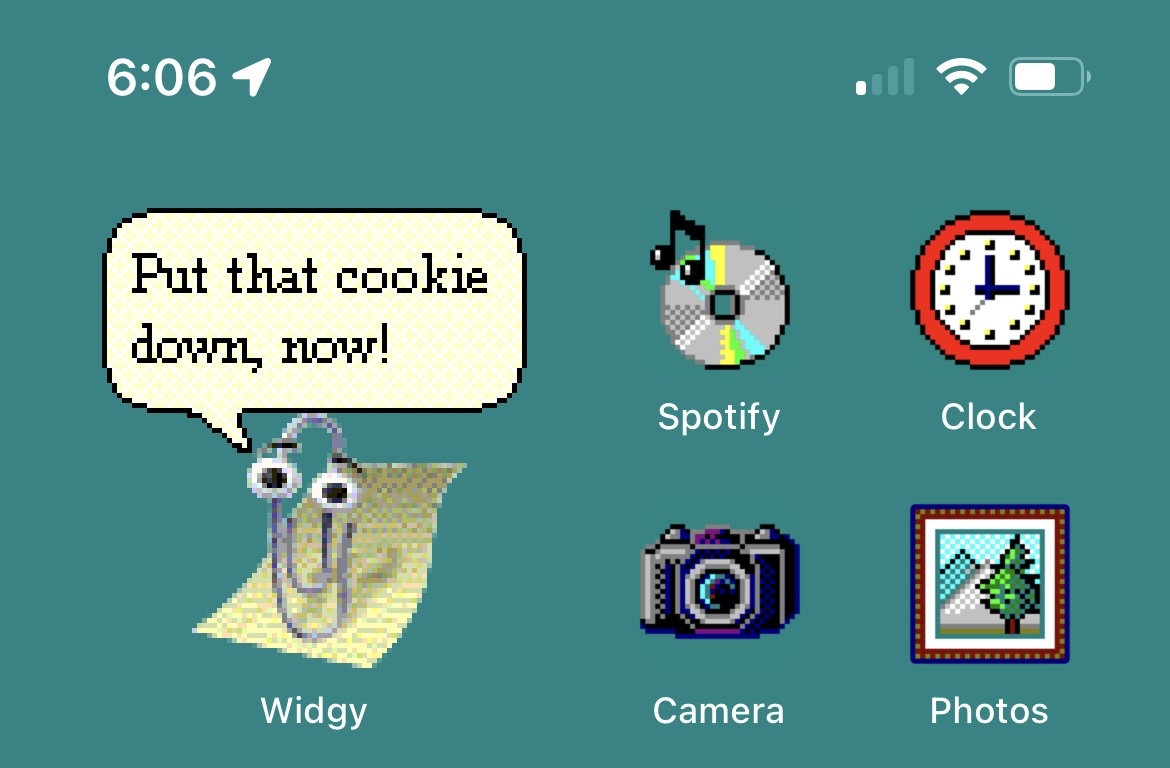
I used an app called Widgy to add Windows 95-style widgets to my home screen. And finally, I even replaced the default iOS sounds with classic Windows 95 sounds.
The most helpful website I found was RetronPrint. However, the instructions there were a little out of date. I’ve shared a link to it below, along with my updated instructions to make things easier.

How to Modify iOS to Look Like Windows 95
You don’t need to jailbreak your iPhone to apply this theme. Just follow these steps:
1. Download the Theme Files
- Visit RetronPrint on your iPhone and download the Windows 95 Theme for iOS zip file.
- If you want additional icons and wallpapers, check out Wallpapers Clan and Windows 95 Theme Pack.
- Open the Files app and go to the Downloads folder.
- Tap the downloaded zip file to extract it. A new folder named “i95_RetronPrint_xx” will appear.
- You can delete the original zip file to save space.
2. Set the Wallpapers
- In the Files app, navigate to Downloads > i95_RetronPrint_xx > Wallpaper.
- Choose a wallpaper you like and tap on it.
- Tap the share icon and select “Save Image.”
- Go to Settings > Wallpaper, then set the saved image as your Lock Screen wallpaper.
- For the Home Screen, set a solid color with these RGB values:
- Red: 58
- Green: 131
- Blue: 132
3. Change App Icons Using Shortcuts
- Open the Shortcuts app.
- Tap the “+” button to create a new shortcut.
- Select the “Open App” action from the menu. If you don’t see it, try searching for “Open App”.
- Tap “App” next to “Open” and choose the app you want to customize.
- In Search Actions, search for the word “Nothing”, then tap it.
- Drag it above the “Open” action. This will hide the notification that appears when you click on the shortcut.
- Tap the down arrow next to “Open App” in the top-center, then tap “Add to Home Screen.”
- Tap the icon next to the shortcut name, then choose “Choose File.”
- Select the corresponding icon from the i95_RetronPrint_xx folder.
- Tap “Add” to place the customized icon on your Home Screen.
- Repeat these steps for each app you want to customize and move these to your main Home Screen.
4. Add Widgets with Widgy
- Download the “Widgy” app from the App Store.
- Open Widgy and complete the initial setup.
- In the Files app, go to i95_RetronPrint_xx > Widgy_Widgets.
- Tap on a widget file to import it into Widgy.
- In Widgy, go to the “Manage” tab, tap an empty slot, and select the imported widget.
- On your Home Screen, enter “jiggle mode” by pressing and holding the background.
- Tap the “+” icon in the top-left corner, search for “Widgy,” and select it.
- Choose the widget size, then tap “Add Widget.”
- Place the widget where you like and tap “Done.”
- Note: You can only add one widget with the free version.
5. Add the Windows 95 Startup Sound
- Open the Shortcuts app and go to the “Automation” tab.
- Tap “Create Personal Automation,” then select “Charger.”
- Choose “Is Connected,” then tap “Next.”
- Tap “Add Action,” search for “Play Sound,” and select it.
- Tap “Sound,” then “Choose File,” and select the startup sound from i95_RetronPrint_xx > Sounds > Start.
- Tap “Next,” then “Done” to save the automation.
Bonus
- If you want to take it to the next level, check out the Terminal One case by RetronPrint.
After setting everything up, my iPhone really looked like a mini Windows 95 computer. Every time I unlock my phone or open an app, it feels like I’m back in the 90s!
It’s also a great conversation starter. If you’re into retro tech or just want a creative new look for your phone, I recommend giving this theme a try!