
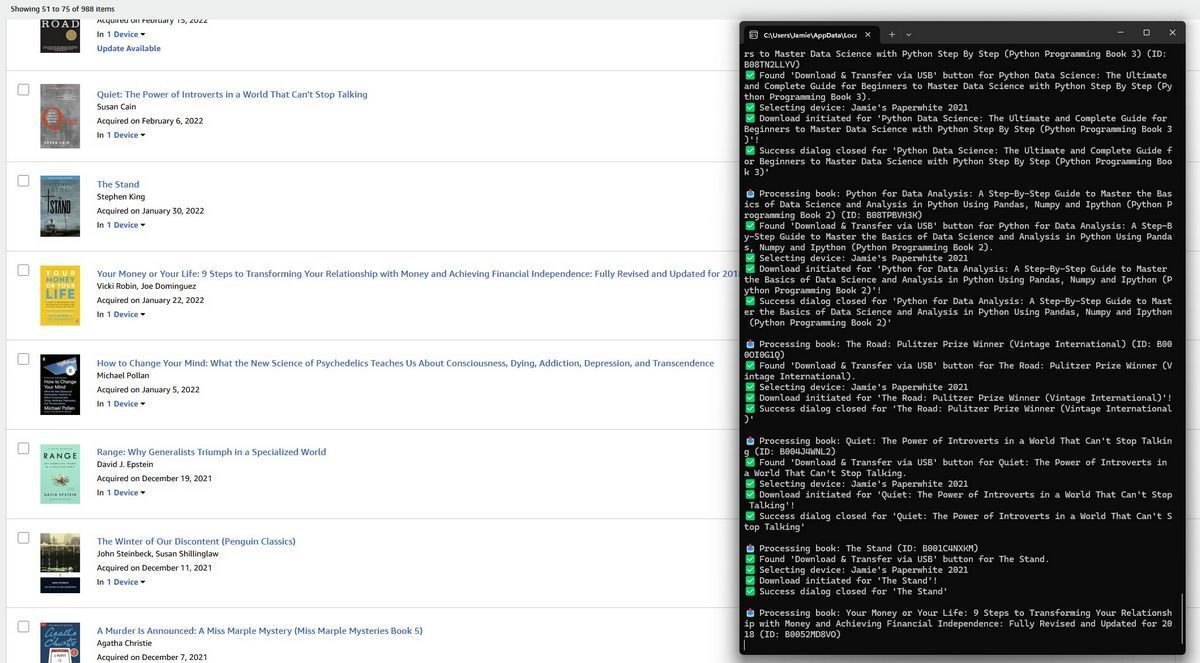
On February 26, 2025, Amazon removed the ‘Download & transfer via USB’ option from their website. Unless they reverse course and reactivate this feature, you will no longer be able to backup your Kindle books using our script.
In light of Amazon’s announcement to discontinue the “Download & Transfer via USB” feature on February 26, 2025, many Kindle users are seeking ways to preserve their purchased e-books. This change will prevent users from downloading Kindle books directly to their computers for offline storage or transfer, raising concerns about long-term access to purchased content.
To address this issue, I’ve developed a Python script that automates the downloading of all your purchased Kindle books quickly and easily, ensuring you have local backups before the impending deadline.
Update: Since writing this article and posting about the script on Reddit, we’ve received incredible positive feedback from hundreds of users all over the world who have downloaded libraries as large as 14,000+ Kindle books. The script is written to work with the amazon.com US website, but users have modified it to work for many other amazon country sites and languages — including India, Germany, Australia, the UK, Brazil, and Spain — by modifying as few as two lines of the script. If you are looking to use the script on a site other than the amazon.com US website, check out the comments on the Reddit post to see if another user has commented about the changes to make.
https://www.reddit.com/r/Calibre/comments/1ivycmc/i_wrote_a_python_script_to_let_you_easily/

What is the Defragg Kindle Downloader?
The Defragg Kindle Downloader is a simple Python script that automates the process of downloading all your Kindle books to your computer.
Key Features:
- Automatically Downloads All Books: Loops through each page of your Kindle content library and downloads each book.
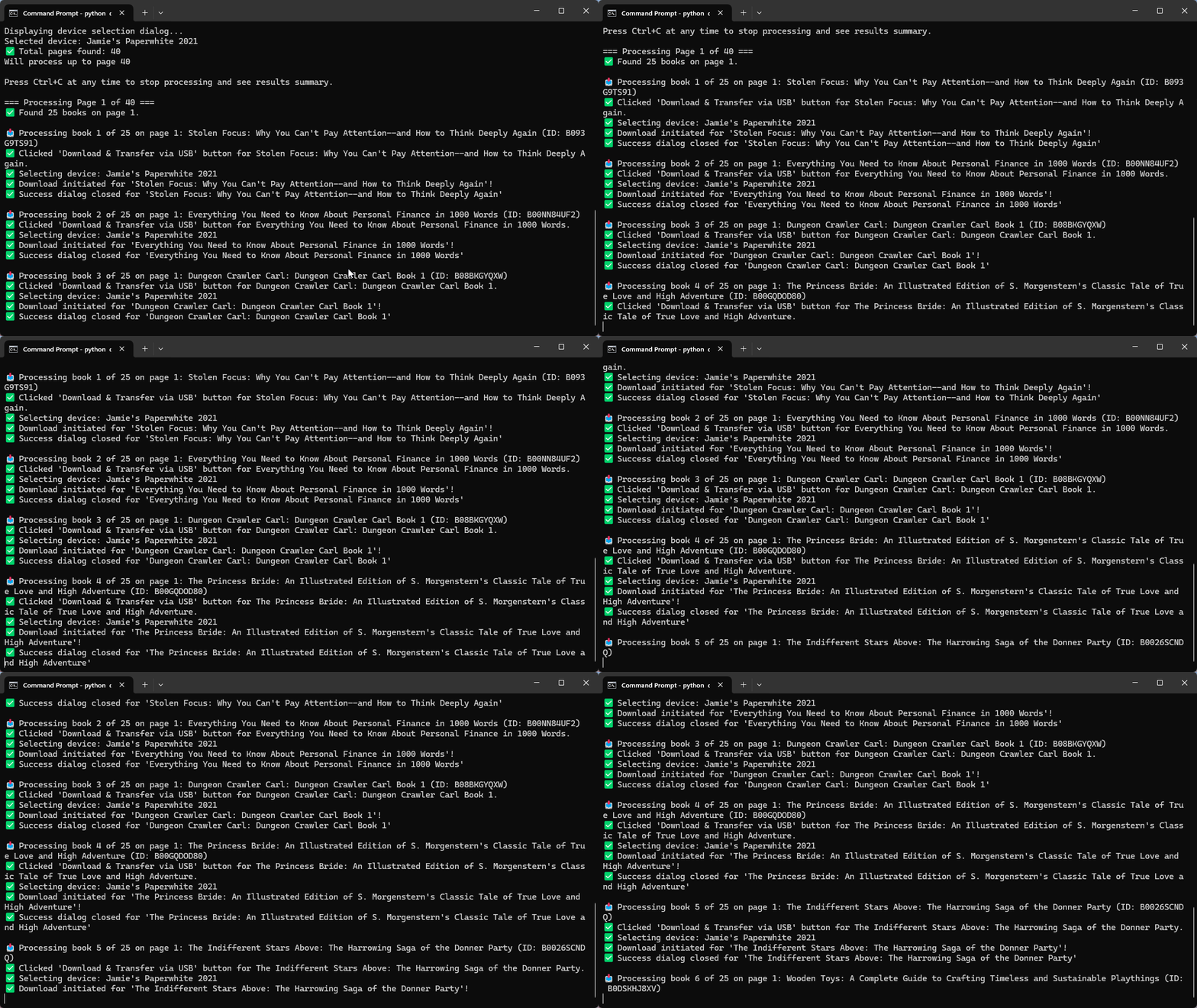
- Fast: Processes around 25 books every 90 seconds.
- Detailed Real-Time Output: The script provides clear, real-time output in the terminal and a log file, allowing you to follow along with each step, see progress updates, and identify any issues as they occur.
- Detailed Logs: Tracks downloads, skipped books, and errors, saving all data to log files.
- Custom Page Ranges: Use
--startand--endarguments to define which pages to process. - Stop Any Time: Press Ctrl+C during execution to stop the script and receive a summary.
- Device Selection: Pick your preferred Kindle device for downloads through an easy, one-time pop-up.
TL;DR
If you are fairly tech-inclined, here is the short version of how to run the script (example commands for Windows):
- Install Python 3
- Run the following pip commands to install the prerequisites
pip install selenium webdriver-manager

pip install chromedriver-autoinstaller - Download the Defragg Kindle Downloader
- Run the script like this:
python defragg-kindle-downloader.py

Prerequisites
1. Installing Python
- Windows:
- Download and install Python from python.org.
- During installation, be sure to check the “Add Python to PATH” option.
- macOS:
- Download and install Python from python.org.
- Make sure that pip is installed by opening a terminal and running the following command
python3 -m ensurepip --upgrade
2. Installing Dependencies
Open your terminal or command prompt and install the required packages by running the following commands one at a time:
- Windows
pip install selenium webdriver-manager

pip install chromedriver-autoinstaller
- macOS
pip3 install selenium webdriver-manager

pip3 install chromedriver-autoinstaller
3. Ensure Google Chrome is Installed
The script requires and up-to-date installation of Google Chrome.
Setting Up the Script
- Download the Script:
- Download the Defragg Kindle Downloader and save it as
defragg-kindle-downloader.pyin a new folder, (e.g., C:\kindle-downloader).
- Download the Defragg Kindle Downloader and save it as
- Run the Script:
- Open Terminal/Command Prompt and navigate to the folder where you saved the script folder:
- Windows (example path)
cd \path\to\kindle-downloader
- macOS (example path)
cd /path/to/kindle-downloader
- Windows (example path)
- Run the Script:
- Windows
python defragg-kindle-downloader.py - macOS
python3 defragg-kindle-downloader.py
- Windows
- Advanced Arguments:
- By default, the script starts on page 1 of your library and downloads all books. If you only want to download books on certain pages, you can add additional arguments when you run the script.
--start: Starting page number (default is 1).--end: Ending page number (default is the last page).- Example (will download all books on pages 5 through 10):
python defragg-kindle-downloader.py --start 5 --end 10
- By default, the script starts on page 1 of your library and downloads all books. If you only want to download books on certain pages, you can add additional arguments when you run the script.
- Open Terminal/Command Prompt and navigate to the folder where you saved the script folder:
How It Works – Step-by-Step Walkthrough
- Read Instructions:
- Carefully read the instructions shown in the command window after executing the script.
- Chrome Browser Launches:
- Log into your Amazon account when the Chrome window opens.
- Device Selection Dialog:
- A pop-up lets you pick the Kindle device to link the downloads to.
- Download Process Begins:
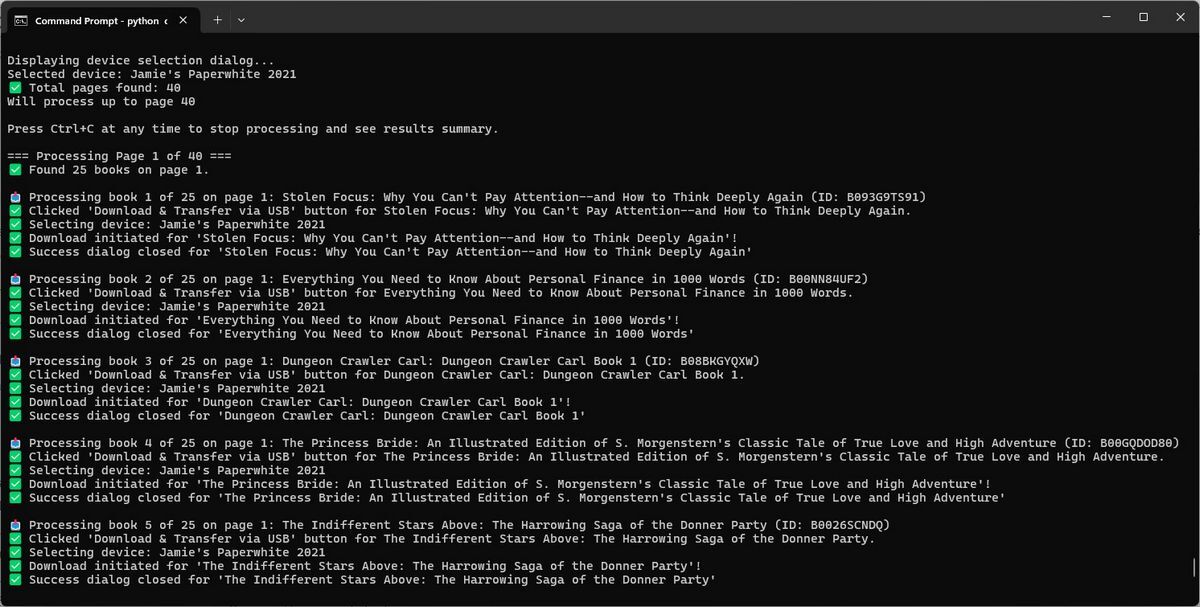
- The script cycles through your Kindle library, page by page, and downloads available books. Do not interact with the Chrome window once the downloading begins!
- Real-Time Updates:
- The terminal displays progress output. Downloaded, skipped, or errored books are all tracked.
- Stop Anytime:
- Press Ctrl+C to halt the process. A summary of downloads and skipped books will appear.
- Final Summary:
- After completion or stopping the script, the following is displayed:
- Total books processed
- Number of successful downloads
- List of skipped books (with reasons)
- After completion or stopping the script, the following is displayed:
Understanding the Logs
The script creates two important files:
- Activity Log (kindle-download-log-[date].txt):
- Shows every action the script took
- Records any errors that happened
- Helps you track what the script did
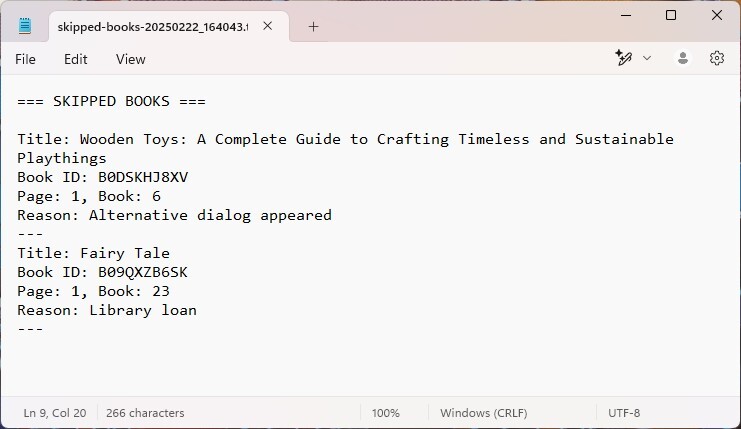
- Skipped Books Log (skipped-books-[date].txt):
- Lists any books that couldn’t be downloaded
- Tells you why each book was skipped
- Helps you know which books to try again
You’ll also see a summary at the end showing:
- Total books processed
- Number of successful downloads
- Number of skipped books
- Reasons why books were skipped
Common Problems and Solutions
If the Script Won’t Start:
- Make sure Python is installed correctly
- Make sure Chrome is installed and up-to-date
- Try running the pip install commands again
- Make sure you’re in the folder containing the script when running the python command.
If Downloads Are Slow:
- Check your internet connection
- Make sure Chrome isn’t using too much memory
- Try closing other programs
If Books Are Being Skipped:
- Make sure you are not clicking on, minimizing, resizing, or otherwise interacting with the Chrome window.
- Some books might be library loans (these can’t be downloaded)
- Some books might be unavailable in your region
- Try those books manually through Amazon’s website
Stay Connected with Defragg
For more tech guides, productivity hacks, and digital freedom tips, subscribe to Defragg’s newsletter.
Appendix: Full Command Reference
# Basic usage
python defragg-kindle-downloader.py

# Specify start and end pages
python defragg-kindle-downloader.py --start 2 --end 5

# Enable debug mode (by editing the script's DEBUG flag)




I keep getting “SyntaxError: source code cannot contain null bytes” in Terminal on Mac OS.
Hey, Julia. I may have already helped you in the Reddit thread about the script. It sounds like there may be an issue with the script file being corrupted. Please try to download the file again and see if that resolves the issue. Hope that helps.
Anyone else getting the error “You do not have any compatible devices registered for this content. Buy a Kindle or get the free Kindle reading app.”
Hi, Ben. In order to use the ‘Download & transfer via USB’ option from the website, you must have a physical Kindle device registered to your Amazon account. The purpose of the feature is to allow you to download a book file and transfer it from your computer to a Kindle device over USB. When you download a book, you must choose a device you plan to transfer it to, Amazon keys the book to that specific device, and it will not work on any other device unless the DRM is removed. So all that to say, you are most likely seeing that message because you do not have a physical Kindle device registered.
I’m getting lots of messages that the dive can’t be found for some of my books. Some downloads are successful, but not all.
I think there’s a typo in your comment so I’m not 100% sure what the message is you’re getting. Is it that the “device” can’t be found for some books? If so, maybe try going to your content library page manually in a browser and see what happens if you click the Download & Transfer via USB option for that book. Does it allow you to download it? Or does it give you some sort of message?
Hi Jamie – yes, it was device. It turns out these were AZW4 content, and I no longer have any Fire devices. Hence the issue.
Anyway, THANKS **SO** MUCH for your utility. It helped me download 17,00 from .com and 4,000 from .co.uk. While it’s possible to do this manually in theory, I doubt I could have done it (a) in time or (b) error-free. Your tool made it trivial!
Wow, that comment made my night! I’m so glad the script was such a big help to you. Thanks for coming back and letting me know it worked. Cheers!
IDLE Shell says: syntax error: invalid syntax
It has been YEARS when I used Python (windows). Did exactly as written here. Even installed Chrome. I feel quite lost.
You need to type the commands into the Windows command prompt rather than into Python IDLE. Sorry if the instructions were not clear; you aren’t the only person to have this issue. Try entering the commands into the command prompt instead and see if that resolves your issue. Good luck!
Running script from a Mac. There is no prompt for a Kindle device. The script successfully opens Chrome and accesses account. It then begins to “process” the books, but for each one it returns the message “Could not find Download & transfer option using any method
Failed to click Download & transfer option during device extraction. Trying next book.”
As noted in the article, Amazon announced they would remove the download option on February 26, and they stuck by that date. The download option is no longer available on the site. So unless they reverse course and put it back up, you will not be able to backup your books with our script. Sorry.
I have a problem with the script.
Per your instructions, when I go to Chrome and log in, the script starts to immediately run without allowing me to select a device.
Then, after several attempted downloads, the process just stops and shows all the error lines for each attempted download.
Hey, Bruce! Unfortunately, Amazon removed the download option from their website on Feb 26, and the script cannot backup your books now. We added a bold note to the top of the article to try to make people aware of this. Unless Amazon decides to re-enable the download functionality, the script will no longer work. There are other methods – though more manual – for downloading your books that will still work. I’d recommend checking out some of the posts over at http://www.reddit.com/r/Calibre/ to learn more about that.