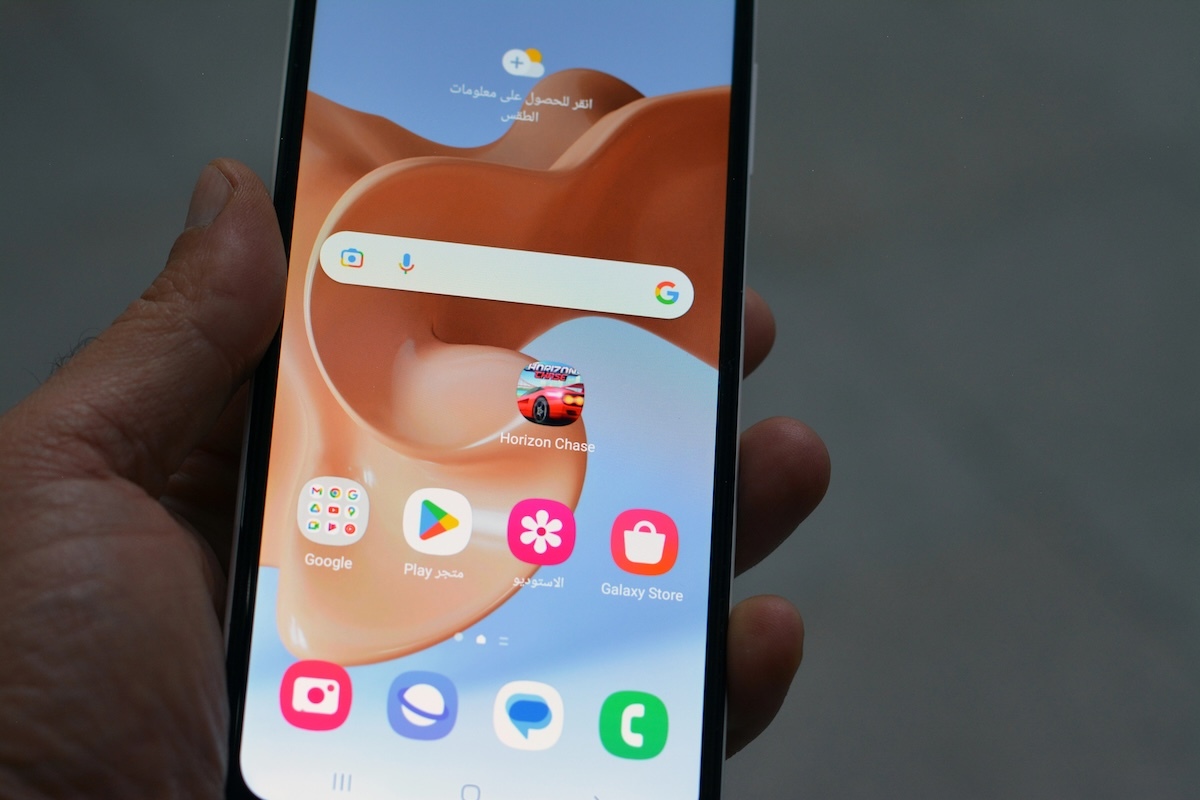
Running out of storage on your phone can slow it down and make it hard to save new files. If you’re using an Android, I’ll show you how to free up space without deleting important data.
Assessing Storage Usage
Before freeing up space, it’s important to check how your Android phone is using storage. You can do this by going to Settings > Storage, where you’ll see a breakdown of used and available space. This section shows how much space is taken by apps, photos, videos, and other files.
For Samsung devices, you can go to Settings > Battery and device care > Storage to see detailed storage usage and cleanup suggestions.
You should also review large files and apps that use the most storage. Some apps, like social media and streaming services, store temporary data (cache) that can be cleared to free up space without losing important files.
Clearing App Cache and Data
Apps store temporary files (cache) to speed up performance, but over time, these files take up a lot of space. Clearing the cache removes these temporary files without affecting personal data or settings.
To clear the cache on an app:

1. Open Settings and go to Apps.

2. Select the app you want to clean.

3. Tap Storage & cache, then Clear cache.
If an app is using too much space, you can also clear its data, but this will reset the app to its original state. Only do this if you no longer need saved preferences, login details, or offline content.
Utilizing Built-in Storage Management Tools

Android devices come with built-in tools to help manage storage efficiently.
One of the most useful tools is Files by Google, which suggests cleaning junk files, large files, and duplicate items. You can access it by opening the Files app and tapping Clean to see recommendations.
Another feature is Storage Manager, which automatically removes backed-up photos and videos after 60 days.
To enable Store Manager, go to Settings > Storage > Storage Manager and turn it on. Some Android brands, like Samsung, also have Device Care, which helps free up space with one tap.
Transferring Files to External Storage or Cloud Services
Moving files to external storage or cloud services helps free up space without deleting important data. If your phone supports a microSD card, you can transfer photos, videos, and documents to it by using the File Manager app.
For cloud storage, services like Google Drive, Dropbox, and OneDrive allow you to upload files and access them from any device. To free up space, you can back up photos to Google Photos and use the “Free up space” option, which removes local copies after backup. Using cloud storage keeps your files safe while reducing storage use on your phone.
Managing Downloads and Duplicate Files
Downloaded files can take up a lot of space, especially if they are no longer needed.
To check your downloads:

1. Open the My Files app or File Manager.
2. Go to the Downloads folder.

3. Delete unnecessary files.
Duplicate files, such as repeated photos, videos, or documents, also waste storage. Some Android devices have a built-in “Duplicate Files” cleaner in the Files by Google app. You can also use third-party apps like CCleaner to identify and remove duplicate files safely.
Optimizing Media Storage
Photos, videos, and music take up a large amount of storage, but you can manage them efficiently.

- Google Photos Backup: Upload your pictures and videos to Google Photos and use the “Free up space” option to remove local copies after backup.
- Video Compression: Use third-party tools to reduce the file size of large videos without losing quality.
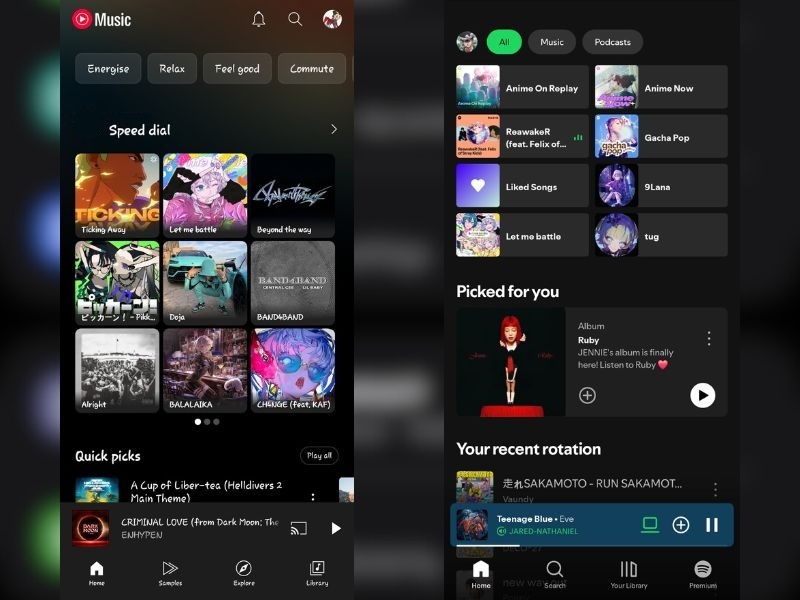
- Streaming Instead of Downloading: Avoid storing too many offline songs or movies. Services like Spotify, YouTube Music, and Netflix let you stream content without taking up phone storage.
Managing Offline Content
Offline content from apps like Google Maps, Netflix, and Spotify can use a lot of storage. Regularly reviewing and deleting old files can help free up space.
- Google Maps: To remove offline maps, open Google Maps, tap your profile picture, go to Offline maps, and delete maps you no longer need.
- Streaming Apps: Check Netflix, YouTube, or Spotify for downloaded videos, podcasts, or songs. Delete content that you have already watched or listened to.
Disabling or Uninstalling Bloatware
Many Android phones come with pre-installed apps (bloatware) that take up space but are rarely used. Some of these apps can be uninstalled, while others can only be disabled to stop them from running in the background.
To remove or disable bloatware:

1. Open Settings > Apps.
2. Select the app you want to remove.
3. If Uninstall is available, tap it to delete the app.

4. If only Disable is available, tap it to stop the app from running.
Disabling bloatware prevents unnecessary storage and battery usage while keeping your phone running smoothly.
Final Thoughts
With the right steps, you can free up storage on your Android phone without deleting important files. You can clear the app cache, use built-in storage tools, move files to cloud storage, and remove unnecessary downloads or bloatware.
Regular maintenance, like managing offline content and optimizing media storage, helps keep your device running smoothly.