
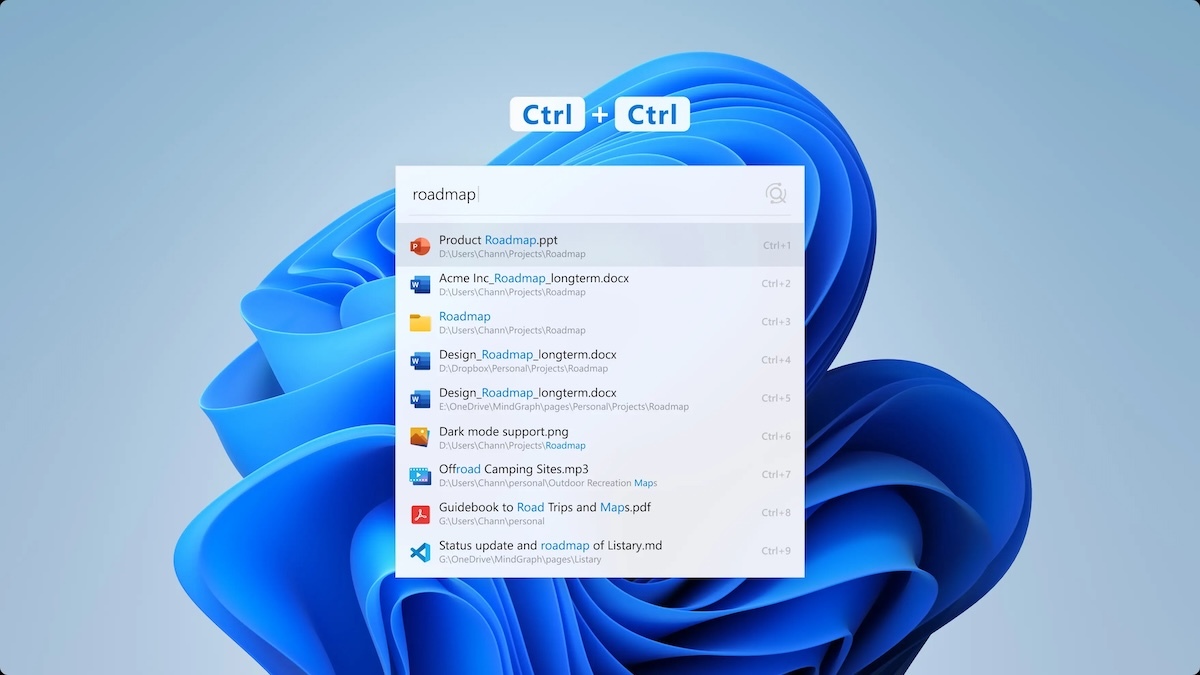
Windows Search is often slow and unreliable, struggling with incomplete names and long indexing times. Listary solves these issues with instant results, even for partial names, and learns your habits to prioritize frequently used files. Its Quick Switch feature also lets you move between folders quickly, making it a far better option for boosting productivity.
Overview of Listary
Listary is a powerful search tool and application launcher designed to improve productivity on Windows. Unlike traditional file management systems, Listary focuses on speed and ease of use.

It allows you to search for files instantly, making it easier to manage even large file systems. The software is suitable for both casual users, who may need a simple search tool, and power users, who need more advanced file management features.
One of Listary’s main strengths is its universal launcher, which makes finding and opening files or apps incredibly fast. You can access the launcher by simply double-clicking the Ctrl key, then typing the name of the file or app.
The system responds in milliseconds and displays search results in real time, even if the search term is incomplete or misspelled. This feature is ideal for users who frequently switch between tasks and want to minimize downtime.
Additionally, Listary’s Quick Switch feature helps streamline navigation in file dialogs. For example, when you are saving or opening a file, you can instantly jump to the folder you’re already browsing in File Explorer, reducing the need to manually locate the folder. This small but powerful feature saves a lot of time, especially for those who work with many files at once.
How is Listary Better Than Windows Search?
Listary offers a significant improvement over Windows Search by providing faster and more accurate results without relying on indexing.
While Windows Search can slow down your system and often requires exact file names, Listary’s fuzzy search allows you to find files even with partial names or typos. It also learns from your usage habits, prioritizing frequently accessed files and folders for quicker access.
Additionally, the Quick Switch feature lets you jump directly to open folders in file dialogs, something Windows Search does not offer.
These features, combined with its lightweight operation, make Listary a much more efficient tool for enhancing productivity
Listary Features That Will Enhance Your Productivity
Listary stands out as a productivity tool because of its powerful features that help you save time and work more efficiently. Here are some of the most important ones:
- Instant Search: One of Listary’s best features is its lightning-fast file search. As soon as you start typing, results begin to appear instantly. Whether you’re looking for a file, a folder, or an application, Listary finds it within milliseconds. This is especially useful for users who manage large numbers of files and want to avoid wasting time navigating through directories.
- Fuzzy Search: Sometimes, you may not remember the exact name of the file you are searching for. Listary solves this with its fuzzy search capability. Even if you make a typo or input only part of a file name, Listary’s algorithm will still deliver relevant results.
- Quick Switch: This feature allows you to move between different folders quickly when you are saving or opening files in a dialog box. Instead of manually navigating through various folders, you can use Quick Switch to jump directly to the folder you are already viewing in File Explorer.
- Smart Sorting: Over time, Listary learns from your behavior. It automatically prioritizes the files, folders, and apps you access most often, placing them at the top of the search results. This means you spend even less time searching and more time working.
- Advanced Filters and Commands: For users who need more precision in their searches, Listary offers advanced filtering options. You can narrow down search results based on file types, locations, and other criteria. Additionally, Listary supports custom commands, allowing you to create shortcuts for frequently used actions, like copying file paths or launching specific applications.
Tips for Getting the Most Out of Listary
To make the most of Listary, you can customize its features to fit your workflow and improve your productivity even further. Here are some practical tips to help you fully leverage Listary’s capabilities:
- Set Up Hotkeys: One of the easiest ways to speed up your workflow is by setting up hotkeys for Listary. By default, pressing the Ctrl key twice opens the search bar, but you can customize these hotkeys to suit your preferences. This allows you to access Listary quickly, whether you’re searching for files, launching apps, or using the Quick Switch feature.
- Use Quick Switch for Faster File Dialogs: If you often work with multiple folders, Listary’s Quick Switch feature is incredibly helpful. When saving or opening a file, simply use Quick Switch to jump directly to the folder that is already open in File Explorer. This reduces the time spent navigating through file dialog boxes, which is especially useful for users working with many different directories.
- Customize Filters for Targeted Searches: For those who regularly search for specific types of files, setting up custom filters can greatly improve search accuracy. You can create filters based on file types, locations, or even file sizes, making it easier to locate what you need. This is particularly useful for professionals working with large data sets or specific file formats like images, documents, or code.
- Pin Frequently Used Folders: Listary allows you to pin your most-used folders for quick access. This way, you don’t have to search for these folders every time you need them. Pinning important directories to the top of your search results ensures you can access them with just a few keystrokes.
- Utilize Web Search: You can configure Listary to perform web searches directly from its search bar, saving you the time of opening a browser and manually typing in URLs or search terms. This feature can be customized to search your favorite websites or use specific search engines.
How to Install Listary
Installing Listary is quick and easy. Follow these steps to get started:
- Download Listary: Visit the official Listary website and click on the Download button. This will download the latest version of Listary for Windows.
- Run the Installer: Once the download is complete, open the installation file. You may see a security warning from Windows—click Run to proceed.
- Follow Installation Prompts: The setup wizard will guide you through the installation process. Click Next and agree to the terms and conditions. You can also choose the destination folder where Listary will be installed, or just leave it as the default.
- Launch Listary: After installation, Listary will automatically start, and you can choose to take a quick tour to get familiar with its main features. You can also find the Listary icon in the system tray, where you can access all its settings and features.
Advanced Customization for Listary Pro Users
While Listary offers great functionality in its free version, Listary Pro takes customization and productivity to the next level. The Pro version unlocks advanced features that allow users to tailor their experience to their specific needs, making it especially useful for power users and professionals.
- Custom Filters: With the Pro version, users can create advanced filters to narrow down search results. This is particularly useful if you frequently work with large amounts of files or specific file types. You can set up filters based on file extensions, directories, or file sizes, making it easier to find exactly what you need.
- Index Shared Network Drives: For users who work in environments where files are stored on network drives, Listary Pro allows you to index these shared locations. This feature helps you search and access files stored on remote drives with the same speed and efficiency as files on your local machine. This is a major advantage for teams working collaboratively or for businesses with extensive networked file systems.
- Advanced Search Syntax: In Listary Pro, you can use more complex search commands and syntax, allowing for extremely precise searches. This feature is great for users who need to find files based on very specific criteria, such as date created, file type, or keywords in the file name.
- Custom Actions and Commands: Pro users can create custom actions to perform tasks directly from the search results. For example, you can set up actions to copy file paths, move files to a different folder, or open specific applications. You can even run command-line functions, making Listary a powerful tool for developers or IT professionals who frequently use command prompts.
- Commercial Use License: Unlike the free version, which is limited to personal use, Listary Pro includes a commercial license, allowing you to use it in business settings. This makes it ideal for professionals and businesses that rely on efficient file management.
In addition to these features, Listary Pro users also enjoy other perks, such as a dark theme for a more comfortable visual experience and lifetime free updates. These advanced features make Listary Pro a highly customizable tool that significantly enhances productivity, especially in professional and business environments.
Conclusion
Whether you’re a casual user or a professional, Listary adapts to your workflow and offers useful customization options. The free version is great for everyday use, while the Pro version adds advanced features, making Listary an excellent choice for anyone looking to work more efficiently.


